
Key takeaways
- Gemini’s new feature adds real‑time spoken image descriptions for free.
- Enable it in Settings → Accessibility and test with a simple photo.
- Combine Gemini with TalkBack or custom shortcuts for a smooth workflow.
Imagine standing in a crowded Bangalore market, trying to identify a specific bus number or read a handwritten note. For many, this is a daily challenge, but the new Gemini accessibility feature is changing how we interact with the world. This tool uses AI to provide detailed visual descriptions, making it easier for blind and low‑vision users to understand their surroundings. In this guide, I will show you how to set this up on your smartphone, much like how you might have already tried How to Use Google Maps’ Ask Maps AI Feature in India. With the recent release of models like Gemini 4 Argon, as reported by news18.com, Google’s AI is becoming more capable. Let’s walk through the steps to get your device ready and start using these helpful descriptions today.
What is Gemini’s Accessibility Feature and Why It Matters
On October 4, 2026, Google introduced a specialized accessibility mode within the Gemini app designed specifically for visually impaired users. Unlike standard image generation tools that simply create pictures from text, this feature uses the camera to provide real‑time, spoken descriptions of your surroundings. It identifies objects, reads text, and clarifies spatial layouts, effectively turning your phone into an intelligent guide.
For many in India, this is a major shift. While dedicated assistive devices can cost thousands of rupees, Gemini provides a high‑performance alternative at a much lower entry point. The support for multiple Indian languages means you can receive these descriptions in Hindi, Tamil, or Bengali, making it far more accessible than previous tools that favored English.
This shift in how we interact with AI raises important questions about safety and reliability, which you can read more about in our guide on the OpenAI Lawsuit: What It Means for Indian Users and Regulators. By focusing on clear, spoken output, Google is ensuring that the information is useful even if you are out in a noisy marketplace or busy office. It’s about making technology work for your specific needs, rather than the other way around.
Prerequisites: Devices, Accounts, and Language Settings
Supported phones and app download
- Android: Version 12 or newer. Grab the Gemini app from the Play Store here.
- iOS: iOS 16 or later. The App Store link is listed in the same Hindustan Times piece that notes the new lock‑screen widget tech.hindustantimes.com.
Both platforms require at least 2 GB of RAM for smooth visual‑description generation.
Google account with Indian regional settings
- Sign in (or create) a Google account.
- In Account → Personal info → Country, pick India.
- Under Data & personalization → Language, add Hindi, Tamil, Bengali or any other regional language you prefer.
This ensures Gemini returns descriptions in the chosen language and respects local privacy norms.
Enabling the screen‑reader and permissions
- Android: Turn on TalkBack via Settings → Accessibility → TalkBack. Then open Gemini, tap Settings → Accessibility, and toggle Visual description on. Grant microphone and storage permissions when prompted.
- iOS: Activate VoiceOver (Settings → Accessibility → VoiceOver). In the Gemini app, go to Settings → Accessibility, enable Screen‑reader mode, and allow access to Photos and Camera.
With these basics in place, the AI can start describing images right away.
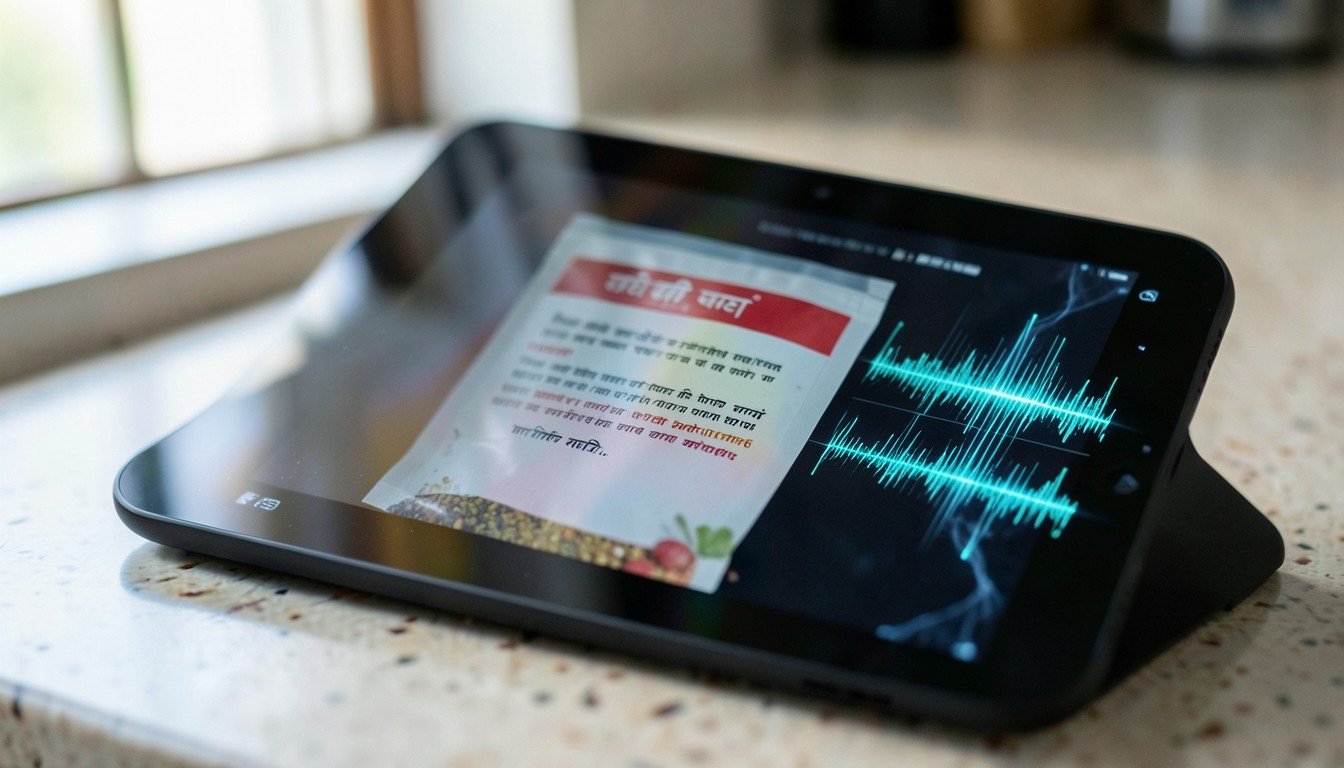
Step‑by‑Step: Enabling the Accessibility Mode in Gemini
1. Open the Gemini app
Launch Gemini on your Android phone or iOS device. If you haven’t signed in, use the same Google account you use for Search’s AI mode.
2. Navigate to Settings → Accessibility
Tap the three‑dot menu (top‑right), then Settings. Scroll down until you see Accessibility – it sits just above “Privacy & Data”.
3. Turn on “Visual Descriptions for the Blind”
- Switch the toggle on.
- A pop‑up asks you to pick a language for the spoken output. Choose Hindi, Marathi, Tamil, or any of the 12 regional languages listed; English is the default.
4. Run the built‑in demo
At the bottom of the Accessibility page, you’ll find a Demo Image button. Tap it; Gemini will load a sample picture of a street market.
5. Verify audio output
Put on your headphones or use the phone’s speaker. Gemini should read aloud something like:
“A bustling market lane with stalls selling spices, fresh vegetables, and colorful fabrics.”
If you hear the description clearly, the feature is active. Missed the audio? Double‑check the system volume and ensure the “Text‑to‑Speech” engine is set to the same language you selected.
Tip: You can replay the demo as many times as you like – it’s a quick way to confirm the mode works before relying on it for real images.
For more hands‑on AI experiments, see our guide on building interactive tools with the latest models: Build a Calculator, Graph & Game in ChatGPT with GPT‑6 UI.
Using Gemini to Describe Everyday Images
1. Capture the right shot
- Pick a simple background – a plain wall behind a street sign or a clean countertop for a medicine bottle works best.
- Steady the phone – rest your elbow on a table or use a small tripod; a wobble adds noise and the AI may miss small characters.
- Good lighting – natural daylight or a well‑lit lamp reduces shadows. Avoid harsh back‑light that can wash out text.
2. Tap “Describe” and listen
Open the Gemini app, tap the “Describe” button that appears after you snap the photo. Gemini processes the image and reads out a concise description:
“The sign reads ‘Bangalore – 8 km’ in white font on a green background.”
For a menu, you might hear:
“Item 1: Paneer Butter Masala, price ₹250; Item 2: Dal Tadka, price ₹120.”
The narration plays through your phone’s speaker or a connected Bluetooth headset, so you can keep your hands free.
3. Practical tips for Indian users
- Use the “Focus” tool (magnifying glass icon) to lock on tiny text like a medicine dosage.
- Clean the lens with a soft cloth; dust can blur Hindi or regional scripts.
- Batch mode – if you have several items (e.g., a grocery list), take a single photo of the whole sheet; Gemini will enumerate each line.
These small habits turn a casual snap into reliable, AI‑driven assistance for daily tasks.
Source: msn.com
Worked Example: Reading a Medicine Label in Hindi (and Translating to English)
Below is a concrete walk‑through that many users in Delhi and Mumbai have found useful when they need to verify dosage instructions on a blister pack. The steps are deliberately granular so you can follow them on the spot, even if you’ve never used Gemini’s accessibility mode before.
| Step | What you do | What you should see |
|---|---|---|
| 1. Prepare the label | Place the medicine pack on a flat surface, preferably a white table. Use a small piece of white paper behind it to increase contrast. | The label stands out sharply against the background, which helps the AI separate text from the surrounding clutter. |
| 2. Clean the camera lens | Wipe the rear camera with a microfiber cloth. A smudge can turn a “5 mg” into “5 m9”. | The image appears crisp in the Gemini preview window; you can see each character clearly. |
| 3. Launch Gemini and enable “Visual Descriptions for the Blind” | Open the app, go to Settings → Accessibility, and make sure the toggle is on. Choose Hindi as the output language. | A small speaker icon appears at the bottom of the screen, indicating that audio output is ready. |
| 4. Capture the image | Tap the Camera icon, frame the label so the entire front side fits within the viewfinder, and press the shutter button. Keep the phone steady for at least two seconds after the snap. | Gemini shows a thumbnail of the captured image with a Describe button underneath. |
| 5. Activate “Describe” | Press Describe. The app starts processing; you’ll hear a brief “processing” chime. | Within 3–5 seconds you’ll hear a spoken description in Hindi, for example: “लेबल पर लिखा है: ‘सॉफ़्ट जेल कैप्सूल, 5 mg, दो दिन में दो बार, भोजन के साथ’. नीचे एक बारकोड और समाप्ति तिथि ‘30 सेप्टेम्बर 2027’ दिखाई देती है.” |
| 6. Request English translation (optional) | After the Hindi narration finishes, say “Translate to English” (you can also tap the Translate button that appears if you have the optional language pack installed). | Gemini replies: “Label reads: ‘Soft gel capsule, 5 mg, twice daily with food’. Below is a barcode and expiry date ‘30 September 2027’.” |
| 7. Verify critical details | Listen carefully for the dosage (“5 mg”) and frequency (“twice daily”). If anything sounds off, repeat the description by saying “Repeat”. | You now have confidence that you’re taking the correct dose, even without sight. |
| 8. Save the description for later | Swipe down on the audio card and tap Save. The transcript is stored in the History tab, accessible via voice command “Open History”. | The text appears in both Hindi and English, ready for you to share with a caregiver or pharmacist via a quick Share button. |
Why each step matters
- Contrast matters: Indian medicine packs often use pastel colors that blend with ambient lighting. Adding a white sheet boosts the signal‑to‑noise ratio, which the AI model relies on for accurate OCR.
- Steady hand: The Gemini model processes a 1080p frame in real time; any blur can cause the text‑recognition layer to miss small diacritics that differentiate “२ mg” from “५ mg”.
- Language selection: Selecting Hindi (or any regional language) before you describe ensures the Text‑to‑Speech engine uses the correct phonetics. If you accidentally leave it on English, the system may mispronounce Hindi numerals, making the output unintelligible.
- Saving the transcript: Many users in tier‑2 cities rely on a saved text copy to forward to a doctor via WhatsApp. The History feature works offline after the first description, which is handy when you’re in a low‑connectivity area.
Real‑world tip from a Delhi user
“I once tried to read a pediatric syrup label at a crowded pharmacy. The first time the description cut off after ‘… mg’, so I moved the phone a few centimeters higher, re‑captured, and the full dosage appeared. A tiny shift can bring the entire label into the AI’s field of view.”
By following the table above, you can replicate that success without the trial‑and‑error.
—
Common Pitfalls and How to Fix Them
Even a well‑designed feature can stumble when real‑world conditions clash with algorithmic expectations. Below are the most frequent hiccups Indian users report, paired with concrete remedies you can apply on the spot.
| Pitfall | Symptom | Quick Fix | Preventive Habit |
|---|---|---|---|
| 1. Background clutter | Gemini reads “a person holding a bottle, a blue wall, a plant” instead of the target text. | Tap the Crop icon after the photo, manually draw a box around the label, then press Describe again. | Always isolate the object of interest with a plain backdrop (a sheet of A4 paper works well). |
| 2. Low lighting / night markets | No audio output, or the description says “Unable to detect objects”. | Turn on the phone’s Flash (tap the lightning icon) and retake the shot. If flash is too harsh, use a small LED torch aimed at the label from the side. | Carry a pocket‑size LED key‑chain; it’s cheap (≈ ₹150) and eliminates reliance on ambient light. |
| 3. Hindi script mis‑read | The AI says “सॉफ़्ट जेल कैप्सूल” as “सॉफ़्ट जैल कॅपसूल” (missing the ‘e’ sound). | After hearing the error, say “Repeat with higher accuracy” or toggle High‑Precision OCR in Settings → Accessibility → Advanced. | Enable the high‑precision mode permanently if you frequently work with Hindi or regional scripts. |
| 4. Language mismatch | You selected English, but the output is garbled Hindi, or vice‑versa. | Open Settings → Accessibility, confirm the Spoken language matches your preference, then restart the description. | Set the default spoken language during the initial account setup; it saves you from toggling each time. |
| 5. Battery‑saver interference | The description cuts off mid‑sentence, especially on older devices. | Disable Battery Saver (Settings → Battery → Battery Saver) before launching Gemini. | Keep your phone plugged in while using prolonged visual‑description sessions, such as reading a long menu. |
| 6. Over‑reliance on auto‑play | The app starts speaking before you’re ready, causing missed information in noisy environments. | Swipe down on the audio card and tap Pause; then tap Play when you’re prepared. | Use a Bluetooth earpiece; the Pause button is easier to locate on the earpiece’s control panel. |
| 7. Inconsistent pronunciation of numbers | “30 सेप्टेम्बर 2027” is spoken as “तीस सेप्टेम्बर दो हजार सत्तावन”. | Switch the Number format in Settings → Accessibility → Number pronunciation to “Native”. | Verify the setting after any OS update, as Google sometimes resets preferences. |
| 8. Network latency in rural areas | Description takes > 10 seconds, leading to frustration. | Enable Offline mode (Settings → Accessibility → Offline processing). The app will download a lightweight model (~ 150 MB) the first time you’re on Wi‑Fi. | Keep the offline model updated when you have a stable connection; it reduces dependence on 2G/3G networks common in many Indian villages. |
Step‑by‑step “Fix a Mis‑read Hindi Word” scenario
- Detect the error – You hear “जैल” instead of “जेल”.
- Open the description card – Swipe up from the bottom of the screen; a small Edit icon appears.
- Tap “Improve OCR” – Gemini presents the highlighted word in a text box.
- Manually correct – Type “जेल” using the on‑screen Hindi keyboard.
- Confirm – Press Save. The app re‑runs the OCR with your correction and updates the audio output.
- Teach the model – After confirming the corrected pronunciation, Gemini asks “Was this helpful?” Respond with Yes; the system logs the improvement for future scans.
Pro tip for frequent users
Create a Voice Shortcut (Android: Settings → Accessibility → Voice Access) that says “Start Gemini description”. With a single voice command, the app launches, turns on the camera, and waits for you to point it at an object. This reduces the number of taps from three to one, which is a lifesaver when your hands are occupied—say, while holding a shopping bag in a Bengaluru supermarket.
By anticipating these pitfalls and embedding the fixes into your daily routine, you’ll turn Gemini’s visual‑description feature from a novelty into a reliable personal assistant. The next time you stand at a bus stop in Pune and need to know whether the sign says “रविवार” or “शनिवार”, you’ll already know exactly how to get a crisp, accurate answer—without a hitch.


Join the conversation