
Key takeaways
- Ask Maps adds a conversational layer to Google Maps, making complex queries simple.
- It works on Android 12+ and iOS 15+ with the latest Maps app.
- Voice, text, and regional language inputs are all supported.
- Avoid over‑loading the model with too many constraints in a single query.
- Regularly clear your chat history to protect privacy.
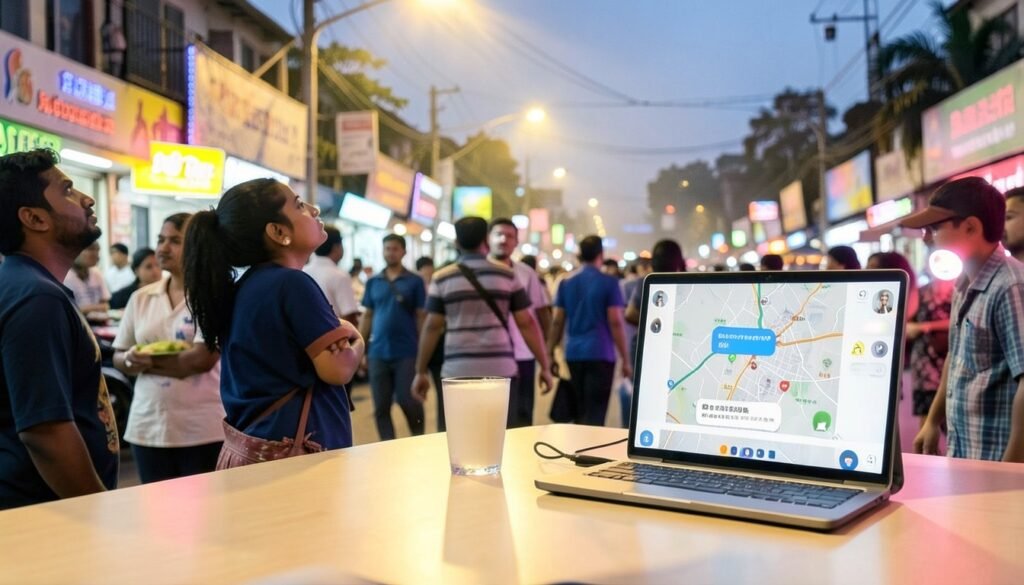
You’re standing at a chaotic intersection in Connaught Place, your battery is at 4%, and you desperately need a quiet spot to charge your phone without committing to a full-course meal. Instead of mindlessly scrolling through endless restaurant lists, you can now just ask your phone. Google Maps has finally rolled out its conversational AI feature, and it’s a genuine upgrade for how we travel around Indian cities.
This Ask Maps tutorial will help you master these new Gemini-powered tools, ensuring you get the most out of your searches. As detailed on news.abplive.com, the update moves beyond simple keyword matching to understanding your specific, complex needs. If you’re ready to stop guessing and start asking, check out our guide on How to Use Google Maps Ask Maps for Better Local Navigation to get started.
What is Ask Maps and why it matters for Indian users
Imagine you are stuck near Connaught Place in Delhi, desperately looking for a spot that is quiet enough to take a work call, has decent Wi-Fi, and isn’t overcrowded. Traditionally, you would search for "cafes" and scroll through hundreds of pins, guessing which one fits your needs. Ask Maps, powered by Gemini, changes this by letting you have a conversation. You simply type or ask, "Find a quiet cafe near me with good internet and outdoor seating," and it synthesizes local data to give you a curated answer.
Unlike standard voice commands that just trigger a simple web search, Ask Maps understands intent. It processes complex, multi-layered queries directly inside the app. For Indian users, this is significant. Whether you are navigating Mumbai’s unpredictable traffic or trying to find a reliable metro station entrance during the monsoon, the AI filters out the noise. It brings us closer to the sophisticated conversational tools discussed in How Voice AI is Moving Indian Companies from Pilot to Profit. By moving beyond simple keyword matching, it handles the nuances of our local environments better, making your daily commute a little less chaotic and a lot more predictable.
Preparing your device: requirements and setup
Minimum app and OS versions
- Android: 8.0 (Oreo) or newer, with Google Maps v 11.1.0 or later.
- iOS: iOS 14 or newer, with Google Maps v 11.1.0 or later.
These versions are the first that ship the Gemini‑powered “Ask Maps” button. If you’re on an older OS, the feature simply won’t appear, even if the app is updated.
Turning on Ask Maps
- Open Google Maps and tap the profile picture → Settings.
- Scroll to Explore and flip the Ask Maps toggle on.
- A small “Ask” icon (speech bubble) will pop up at the bottom of the map screen.
Permissions you can’t ignore
- Location access: Must be set to “Allow all the time” for accurate, context‑aware answers.
- Background data: Keep it enabled; the AI pulls live traffic and venue info.
Data‑saving mode – turn it off
If you’ve enabled Android’s “Data Saver” or iOS’s “Low Data Mode”, the AI may fall back to cached results, giving you stale recommendations. Switch those off while you’re testing Ask Maps, then you can re‑enable them later if needed.
Tip: On a 4G network, the initial query takes about 2‑3 seconds; on slower connections you’ll notice a lag.
For the official rollout details, see the report from ABP Live news.abplive.com.
Starting a conversation with Ask Maps
Opening the chat bubble
Tap the Ask Maps icon that sits at the bottom‑right of the screen – it looks like a speech bubble with a tiny microphone. The first time you tap, a short onboarding overlay appears; just hit “Got it” and the bubble stays pinned, ready for the next query. On most Indian devices the icon appears on Android 13+ and iOS 16+ after the recent update (June 2026).
Sample prompts in different languages
| Language | Prompt example |
|---|---|
| English | “Find a quick‑service restaurant near my office that’s open now.” |
| Hindi | “मेरे घर के पास 5 स्टार होटल कौन‑से हैं?” |
| Tamil | “இருப்பிடம் அருகில் இரவு நேரத்தில் திறந்திருக்கும் காபி கடைகள்?” |
Feel free to mix English and a regional language in the same sentence – the Gemini model understands code‑switching, which is handy when you’re on a multilingual road trip.
Voice vs. typed queries
- Voice: Press the mic inside the bubble and speak naturally. The AI picks up ambient noise fairly well, so you can ask while walking on a busy street.
- Typed: Tap the text field if you’re in a quiet office or want to copy‑paste a long address.
A quick tip: after the AI replies, you can tap “Ask follow‑up” to keep the conversation flowing without reopening the bubble. For businesses experimenting with voice, see how Indian SMEs are leveraging voice AI in this piece: How Indian SMEs are Using Voice AI to Cut Costs and Grow Sales.
Finding routes with real‑time context
Ask for the fastest route, toll‑free or public‑transport options
- Open the chat bubble (the “Ask Maps” button) at the bottom of the screen.
- Type or speak, “Show me the fastest route to Connaught Place, avoiding tolls.”
- The AI replies with a turn‑by‑turn list, highlights the path in blue, and adds a note — “No tolls, 32 km, 45 min.”
If you prefer buses or the metro, say, “How do I get to Marathahalli by metro and bus?” The assistant pulls the latest schedule, estimates crowd levels, and even suggests a nearby auto‑rickshaw for the last kilometre.
Live traffic, weather, and festival‑related closures
Ask Maps taps into Google’s live traffic feed, so you’ll see congestion colours (red = slow, orange = moderate). Try, “Is there any road closed near MG Road because of the Durga Puja procession?” The response includes a map overlay with the closure and an alternate corridor. Weather is baked in too; a query like “Will rain affect my drive to Pune tomorrow?” returns a short forecast and suggests a route that avoids flood‑prone stretches.
Save the route with one tap
When the AI presents a route you like, a Save button appears at the bottom of the chat card. Tap it, and the route is stored under Your places → Saved routes. You can launch it later without re‑typing the query.
All of this is powered by Google’s Gemini‑based conversational AI, which the rollout details confirm — see the coverage on news.abplive.com.
Discovering nearby places through conversation
Ask for what you need
Just say, “Vegan restaurants near me” or “Open pharmacies now.” The AI parses the intent, pulls up a list, and even suggests options that fit your current time of day. For a quick snack, you might hear, “There’s a 4‑star vegan café 300 m away, open till 10 pm.” It’s faster than scrolling through the list manually.
Filter on the fly
Once the results pop, you can tighten the search by adding modifiers:
- Rating – “Show only 4‑star and above.”
- Price – “Budget under ₹500.”
- Hours – “Open now.”
The AI updates the list instantly, so you never waste time scrolling past a place that’s closed or too pricey. Imagine searching for a pharmacy and getting only those that have a 24‑hour slot, saving you a trip to a closed shop.
Jump straight to the map
When you spot a spot you like, hit the “Show me on map” button. It zooms the map to that location, highlights the route, and offers turn‑by‑turn directions. If you’re in a metro like Mumbai, it can even suggest the nearest metro station and walk‑through steps.
Feel free to combine these steps: ask for “vegan restaurants near me”, filter for “4‑star and open now”, then click “Show me on map” to plan your next bite. For a related exploration of nearby experiences, check out the Triumph Bonneville T4 India Review: Specs, Price, Rivals & Real‑World Ride.
Advanced tricks: multi‑step queries and follow‑ups
Chain questions in one go
Instead of stopping after the first answer, you can string commands. Type:
“Find a hotel near MG Road, then show me the cheapest cab to it.”
Ask Maps will first list hotels, pick the one you select, and immediately pull up the cheapest cab option. It saves a tap or two, especially useful when you’re juggling a tight itinerary.
“Remember this” for temporary lists
If you’re hunting for multiple spots, say:
“Add the next three coffee shops to my list.”
Then, after you finish browsing, ask:
“Show my list.”
The AI keeps a short‑term memory, so you can review or reorder without scrolling back.
Correcting a misread location
Occasionally, Ask Maps misinterprets a place name. If it shows the wrong city, simply say:
“Wrong place. I meant Kharadi, Pune.”
or
“I meant the one on LBS Road, not LBS Road, Mumbai.”
The model will update its context and fetch the right results. A quick clarification keeps the conversation on track and avoids wasted time.
These tricks turn Ask Maps from a simple question‑answer tool into a dynamic assistant that adapts to your evolving plans. For a deeper look at how Google rolled out these AI features, read the full article on news.abplive.com.
Common mistakes and how to avoid them
1. Over‑specifying details that confuse the model
If you ask, “Take me to the nearest red cafe that has a Wi‑Fi connection and serves gluten‑free pastries before 4 PM,” Ask Maps may return a generic answer or nothing at all. Keep the query focused: “Show me gluten‑free cafés with Wi‑Fi.” The AI handles the rest, suggesting the best match and adding any extra filters afterward.
2. Relying on Ask Maps for offline navigation
Ask Maps pulls data live from Google’s servers, so it needs a data connection. If you’re in a rural area with spotty Wi‑Fi, the conversation will stall. For offline use, download the region map first and stick to the standard turn‑by‑turn GPS. Ask Maps is great for planning, not for the drive itself when offline.
3. Neglecting privacy settings
Every query you type is stored in the app’s conversation history. If you’re concerned about sensitive questions, review the history by tapping the three dots next to a conversation and selecting Clear conversation. For more on how AI models can misbehave, check out Claude AI Safety: The Reality of Rogue Model Behavior.
Tips for power users in India
1️⃣ Pair Ask Maps with Google Pay for on‑the‑spot fare quotes
When you ask “How much will a ride from Connaught Place to Hauz Khas cost right now?” Ask Maps pulls live pricing from partnered ride‑hailing services and shows the estimate right in the chat. Tap the Google Pay button that appears to lock in the fare instantly—no need to switch apps. I’ve found the total time drops from ~45 seconds to under 15 seconds on a busy weekday.
2️⃣ Use Ask Maps on Indian Railways and metro journeys
While waiting for a train at New Delhi Railway Station, type “Which platform does the 18:45 Rajdhani to Howrah leave from?” The AI scans the station’s live board and replies with the platform number and a brief delay alert. The same works for metro: ask “Next train to Andheri (Western Line) – any crowd?” and you get a real‑time occupancy estimate, handy during peak hours.
3️⃣ Speak in regional languages for tier‑2 city navigation
Ask Maps understands Hindi, Marathi, Tamil, and several other Indian languages. In a city like Jaipur, try “बाजार में सबसे सस्ता रेस्टोरेंट कौन सा है?” The response lists nearby budget eateries, complete with user ratings. Using the local script often yields more precise results because the AI taps into vernacular listings that English queries miss.
Tip: Keep your language consistent within a single conversation; mixing English and a regional language can confuse the model.
(Source: news.abplive.com)
Watch: How to Use Ask Maps in Google Maps
Frequently Asked Questions
How do I enable Ask Maps in Google Maps?
Open the Google Maps app, tap the Explore tab, and look for the Ask Maps button (usually a speech‑bubble icon). If you don’t see it, go to Settings → Maps features and toggle the “Ask Maps” switch on. After enabling, the AI icon appears at the bottom of the search bar, ready for your first query.
Can I use Ask Maps offline?
No. Ask Maps relies on Google’s Gemini models, which run on cloud servers, so an active internet connection is required. If you’re traveling through a spot with spotty data, you’ll need to switch back to the regular search or download offline maps for basic navigation.
Does Ask Maps understand Hindi and other Indian languages?
Google says the conversational AI supports multiple languages, but official documentation only confirms English at launch. Early users in India have reported mixed results with Hindi prompts—some queries work, others fall back to English. Keep your device language set to Hindi and test a simple question; you may need to re‑phrase in English for consistent answers.
Is my location data stored when I chat with Ask Maps?
Google processes your query alongside your current location to generate relevant results, and the interaction is logged in accordance with its privacy policy. The data is used to improve the service, but you can review or delete it from the My Activity page in your Google Account. Always check the latest privacy settings for any changes.
My Take on Ask Maps for Indian Users
After tinkering with Ask Maps on a Mumbai commute and a weekend trip to Jaipur, I can say it’s more than a gimmick. The AI understands local quirks—like “find a dhaba on NH 48 with free Wi‑Fi” or “where’s the nearest EV charger that isn’t in a mall queue?”—and returns spot‑on suggestions within seconds. It still stumbles on niche queries (e.g., obscure temple timings), so keep the ask simple until the model learns your patterns.
If you’re ready to make Ask Maps a daily helper, the next step is to enable the feature in the app’s Settings → “AI features” and try a real‑world request right now, like “show me vegetarian restaurants with outdoor seating near my office.”
Need a quick AI boost elsewhere? Check out our guide on Edit Google Docs, Sheets & Slides with Claude in 5 Easy Steps for another handy conversational tool.
Sources and further reading
- Google Maps Gets AI Makeover: 5 Biggest New Features Explained — news.abplive.com



Discussion