
Key takeaways
- Prioritize your specific workflow—student, creator, or office—before looking at NPU specifications.
- The Microsoft Copilot+ label is a minimum hardware baseline, not a measure of superior performance.
- Thermal management and memory bandwidth are often more critical for AI tasks than raw TOPS numbers.
- Always verify local AI support for your specific software before purchasing hardware based on marketing claims.
Are you staring at your cart, torn between a sleek machine promising high NPU performance and a bulky beast built for high-frame-rate gaming? When you’re deciding on an ai laptop vs gaming laptop, the marketing can feel like a maze. You might wonder what is ai pc laptop hardware really doing, as these machines prioritize battery efficiency for local LLM inference over the raw GPU power found in traditional gaming rigs.
I’ve seen too many people buy the wrong tool for their specific needs, so let’s clear the fog. You’ll learn how to distinguish between an ai laptop vs normal laptop and decide if you actually need specialized silicon for your daily workflows. For a deeper look at the technical specs, check out our Laptop Requirements for Artificial Intelligence: A Buying Guide. Even if you’re curious if these new machines can handle gaming, msn.com notes they aren’t always designed for that primary purpose.
Understanding the NPU in Daily Tasks
Think of the Neural Processing Unit (NPU) as the specialized engine for your laptop’s AI tasks. While your CPU handles general logic and your GPU churns through heavy graphics or deep-learning training, the NPU is designed for low-power inference. It’s built to run background features—like real-time video background blur or voice noise cancellation—without draining your battery or heating up your chassis.
Comparing an ai laptop vs gaming laptop often leads to confusion about these specs. Many shoppers see high TOPS (Tera Operations Per Second) numbers and assume they equal sheer speed. That’s a trap. TOPS is a theoretical maximum, not a guarantee of real-world performance. You might find a high-end ai pc laptop with fewer TOPS that feels snappier than a budget model simply because its software is better optimized for its specific NPU performance.
If you are wondering what is ai laptop used for specifically, it is about offloading these specific low-power tasks. Before you drop your money, check if your primary software suite actually supports hardware acceleration for these tasks. If your work relies on apps that don’t talk to the NPU, that high-spec chip is just extra weight. For a deeper look at balancing these requirements, check out our Best Laptops for AI Work: A Practical Hardware Guide. Sometimes, a machine like the MSI Vector 16 HX AI, which prioritizes a powerful GPU over a specialized NPU, might actually serve your workflow better than a thin-and-light model.
The Student Profile: Efficiency and Local LLMs
If you are a student, lugging a heavy machine to the library is a chore. You need a device that handles local LLMs like Llama 3 without dying by midday. When considering an ai laptop vs gaming laptop, remember that the latter often sacrifices portability to house a massive cooling system.
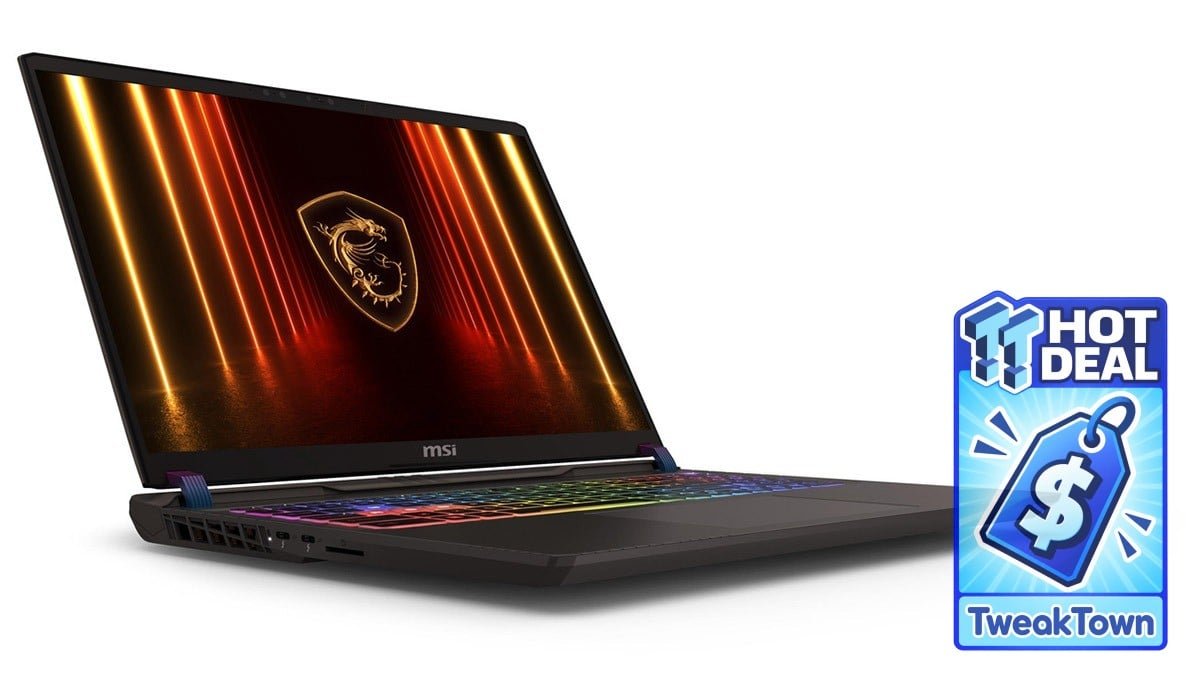
Unlike a gaming rig, an AI laptop focuses on NPU performance to save energy. When you compare an ai laptop vs normal laptop for a lecture hall, the efficiency of an NPU means your fans aren’t screaming during a quiet tutorial. You don’t need the power of a dedicated RTX 5070 Ti, like in the MSI Vector 16 HX, to summarize a PDF or draft an essay.
Thermal management is critical because your laptop will likely spend hours inside a cramped backpack. A chassis that handles heat passively is better for your sanity than one that requires constant airflow. Look for magnesium alloy or reinforced plastic builds; they keep the weight down while surviving the daily commute to campus.
For running Llama 3, aim for at least 16GB of RAM. If you are in India, where power outlets in libraries are often elusive, prioritize machines with high-watt-hour batteries over those that promise raw, plug-in-only speed. That is what an ai laptop is used for: balancing local productivity with the freedom to move.
The Creator Profile: GPU vs. NPU for Creative Work
If you spend your day in Premiere Pro or Blender, don’t get distracted by NPU performance numbers. While an NPU is excellent for background noise suppression or quick AI-assisted masking, it isn’t going to render your 4K timeline or complex 3D scenes. For that, you need the raw horsepower of a discrete GPU. Think of the NPU as your assistant handling small, repetitive tasks, while the GPU remains the heavy lifter for the actual creative work.
When comparing an ai laptop vs gaming laptop for creative production, the GPU’s VRAM is your primary constraint. A machine like the MSI Vector 16 HX AI, which packs an RTX 5070 Ti with 12GB of dedicated VRAM, offers a massive advantage for high-resolution assets that an NPU simply cannot replicate. You’ll find that as you scale your project complexity, VRAM capacity often dictates system stability far more than NPU throughput.
Unified memory architectures are changing how we view these workflows, but they aren’t a silver bullet for every user. Before you commit, check out Are AI Laptops Worth It? A Guide to Ryzen 5 130 Performance to see how different chipsets manage shared resources. If you are a professional, prioritize a balanced machine: one with a beefy discrete GPU for your primary pipeline and enough NPU overhead to manage the modern AI-accelerated features creeping into your favorite software suites.
The Office Professional: Privacy and Local Inference
If you handle sensitive client data, cloud-based AI tools are a liability. When you run local inference, your documents stay on your physical drive rather than being uploaded to a public model for processing. This is the primary reason the best ai laptop for business choices prioritize local processing capabilities over raw cloud connectivity.
Beyond privacy, NPUs handle the heavy lifting of real-time video conferencing. Think about background blur, noise suppression, and eye contact correction. These features offload work to the NPU instead of the CPU, leaving your main processor free to handle your spreadsheets or presentation without stuttering.
However, do not ignore the hidden cost of background AI tasks. If a dozen processes are constantly active, your system responsiveness can dip. As noted in coverage from pcworld.com, these chips offer specific utility for targeted tasks, but they should never throttle your core workflow.
When comparing an ai laptop vs regular hardware, look for enterprise-grade security chips first. High NPU performance metrics might look impressive on a spec sheet, but they mean little if your device lacks hardware-level encryption or secure boot features.
Practical tip: Check if your laptop allows you to toggle specific AI features off in the BIOS or system settings. You don’t always need an AI assistant tracking your eyes during an internal team sync. Focus on security and reliability over raw speed.
Decoding Microsoft’s Copilot+ Certification
When you look for an ai pc laptop, you will see the "Copilot+" badge on many marketing materials. Microsoft created this certification to establish a baseline for local AI tasks. To earn the badge, a machine must feature an NPU capable of at least 40 trillion operations per second (TOPS), paired with at least 16GB of RAM and a 256GB SSD. It is a standard designed to ensure specific features, like live captions or local image generation, run efficiently without taxing the entire system.
However, do not assume a machine without this sticker is obsolete. If you are comparing an ai laptop vs gaming laptop, remember that a powerful discrete GPU often handles local inference faster than a baseline NPU. If your work involves heavy local model training, you might find more value in raw GPU horsepower than in the specific NPU compliance required for the Copilot+ label.
Before upgrading, you might want to How to Audit Your Business Reputation in AI Search Results. Think of this certification as a functional floor, not a performance ceiling; it confirms your device meets the minimum requirements for specific AI features, but it does not represent the absolute limit of your laptop’s potential.
The Thermal Trade-off: Sustained Performance
When you compare an ai laptop vs gaming laptop, the most obvious difference is the cooling hardware. Thin-and-light AI machines are designed for short bursts of NPU activity. If you try to run a complex, local LLM for an hour, these chassis hit thermal limits quickly. Once the internal temperature climbs, the system triggers thermal throttling, which aggressively downclocks the NPU to prevent hardware damage.
You will notice this shift immediately. Fans kick into high gear, creating a distracting hum, while the actual throughput of your AI model slows to a crawl. Manufacturers often place strict power limits on the NPU to preserve battery life and ensure component longevity. This makes sense for a quick image generation task, but it becomes a bottleneck for heavy, sustained data processing.
As noted in testing for the HP OmniBook Ultra 16, machines built for efficiency aren’t meant for the sustained load that high-end gaming or massive AI training requires. If your laptop starts running warm while simply browsing the web, do not expect it to handle intensive local AI inference without a significant performance drop.
A good rule of thumb: if the chassis is less than 18mm thick, it likely lacks the heat pipes to maintain peak NPU performance for more than a few minutes. If your workflow involves long-running AI tasks, look for a bulkier machine with better airflow or dedicated cooling.
Memory and Storage: Why 16GB is the New Minimum
If you are comparing an ai laptop vs normal laptop, the first specification to check is the RAM. Forget 8GB; it simply will not cut it for modern local AI tasks. When you run large language models, the model weights must reside in your system memory. If you have less than 16GB, your operating system will start swapping data to your SSD, which forces your system to crawl and makes local inference feel sluggish.
Beyond sheer capacity, you need high memory bandwidth to feed the NPU. If your processor has to wait for data to trickle in from slower RAM, your NPU performance drops significantly. This is why many manufacturers now solder faster LPDDR5X memory directly to the board. It is faster, yes, but it means you cannot upgrade it later. If you want a machine that stays relevant, prioritize an upfront investment in 32GB of RAM.
Storage is a different story. While RAM is often fixed at the factory, you can usually swap out your M.2 SSD for something larger. When handling massive local datasets for inference, you need a PCIe Gen4 or Gen5 drive to prevent bottlenecks. If you are shopping for your next machine, check out this Best AI Laptop to Buy in 2026: A Practical Indian Guide to see which models offer the best balance of upgradeable storage and integrated memory. Remember: you can always add more storage later, but you are usually stuck with the RAM you purchase on day one.
Longevity and Repairability
When you buy an AI laptop, you are betting that the hardware will remain relevant as software demands shift. Proprietary NPUs are efficient today, but they lack the flexibility of discrete GPUs. If you look at machines like the MSI Vector 16 HX, the inclusion of upgradeable RAM slots—like their 2 x 8GB setup—means you are not locked into the factory configuration. This modularity is a massive win for long-term ownership.
However, consider the software side. AI capabilities depend heavily on consistent driver updates. If a manufacturer stops pushing patches for their specific NPU, you lose access to new features. A standard laptop with a powerful discrete GPU often enjoys better driver longevity because the hardware is widely supported by developers. When it comes to resale value, specialized AI gear might struggle if the market pivots to newer, faster NPU architectures overnight. Before buying, prioritize machines that allow you to swap components or at least offer a clear roadmap for firmware support. Do not let a shiny marketing sticker fool you into buying a machine that will effectively be a paperweight in three years when the next AI standard arrives.
Frequently Asked Questions
Do I need an NPU to use AI features on my laptop?
You don’t strictly need an NPU to run AI features, but it significantly changes your efficiency. Without one, your CPU or GPU handles the load, which drains battery and heats up the chassis. An NPU offloads these background tasks, keeping your system cool during video calls or background transcription. It is the difference between a sluggish experience and one that feels responsive.
Is 16GB of RAM enough for running local AI models?
For basic tasks, 16GB is the entry-level standard, but it often feels cramped when running local Large Language Models. If you plan to experiment with sophisticated AI tools, 32GB gives you the breathing room to keep your browser and creative apps open simultaneously. Don’t settle for less if you want your system to last through future software updates and demanding workflows.
What is the difference between an AI PC and a standard laptop?
A standard laptop relies on its CPU and GPU for everything, while an AI PC includes a dedicated NPU designed specifically for AI-driven workloads. This isn’t just about raw performance; it is about shifting the computational burden to a power-efficient chip. When comparing an ai laptop vs regular machine, the main difference is how long you can work unplugged while running background AI features.
Does the Microsoft Copilot+ label mean the laptop is faster?
The Copilot+ badge doesn’t guarantee raw speed, but it confirms the hardware hits Microsoft’s specific benchmarks: at least 40 TOPS for the NPU, 16GB of RAM, and 256GB of fast storage. Think of it as a compatibility stamp rather than a speed rating. It tells you the machine is capable of handling future on-device AI features intended for the Windows ecosystem.
Future-Proofing Your Hardware Choice
When you’re debating the ai laptop vs gaming laptop choice, don’t ignore how long the machine will last. Many sleek AI PCs prioritize thin designs, which often mean soldered RAM that you can’t upgrade later. If you’re serious about longevity, look for models like the MSI Vector 16 HX. It allows you to swap out the 2 x 8GB RAM sticks, which is a massive plus if you’re planning to run resource-heavy local models for years.
Think of your laptop as a long-term investment, similar to how you might approach your Greece Crypto Tax Rate: A Guide to the New 10% Levy planning—you want to know the long-term impact before committing. Before you pull the trigger on a purchase, check the official service manual to see if the storage and memory are user-accessible. Buying modular now beats replacing the entire board later.


Join the conversation