
Key takeaways
- Always set up your Brand Kit before using AI design tools to ensure visual consistency.
- Use ‘Magic Edit’ to customize stock images so they feel unique to your brand.
- The ‘Bulk Create’ tool is the fastest way to scale your social media output for the entire month.
- Proofread all AI-generated text to ensure it matches your business tone.
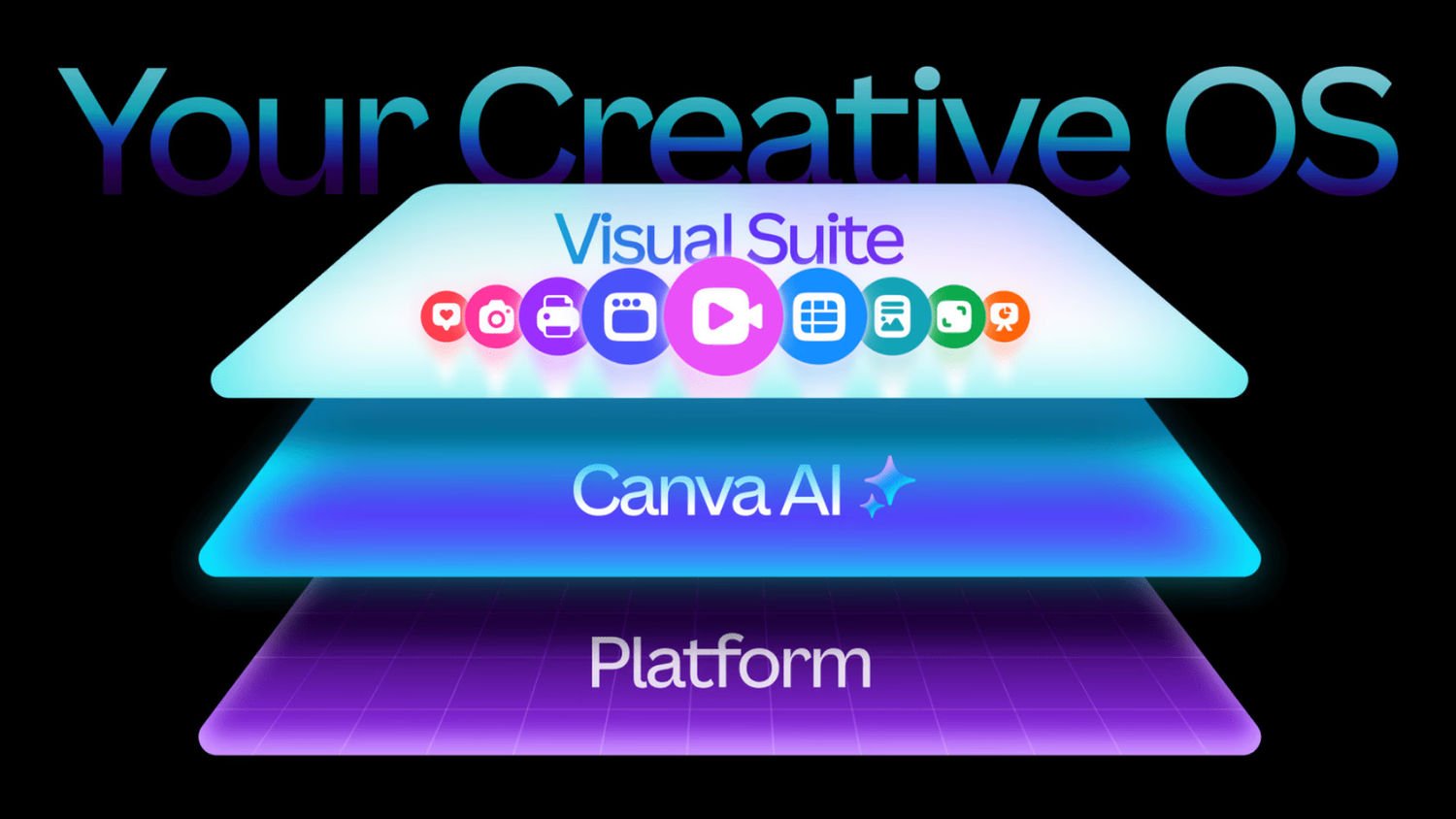
Remember the frustration of spending hours aligning text boxes for a simple Instagram post? For many Indian small business owners, design feels like a chore that takes time away from actual sales. If you are ready to reclaim your schedule, this canva ai tutorial for beginners is your starting point. We aren’t just talking about generating random images; we are focusing on how to use Canva’s Magic Studio to build brand-consistent, layered layouts that look like a pro created them. As noted in a recent breakdown on digit.in, Canva’s new design model actually understands typography and balance, not just flat pixels. While we explore these creative tools, remember to keep your digital life locked down, perhaps by reading up on AI Agents Hacking Crypto Wallets: A Security Guide. Let’s walk through how to use Canva step by step to build your brand identity.
What You Need to Get Started
Before you dive into this canva ai tutorial for beginners, let’s get your workspace ready. You don’t need a degree in graphic design, but you do need the right setup. First, ensure you have a Canva account. A free account gets you through the basics, but keep in mind that many advanced Canva Magic Studio features have usage limits or are reserved for Pro subscribers.
Next, gather your brand assets. Have your logo files (PNGs work best), your primary brand colors (hex codes are perfect), and your signature fonts ready. Consistency is the secret sauce for local businesses. Just like researching the specs for Jeep’s New Affordable SUV: What Indian Buyers Should Expect, you need to know exactly what you’re working with before you start building.
Prepare a quick list of 5-10 content topics. Think about local events, upcoming festivals like Diwali or Ganesh Chaturthi, or simple weekly updates for your customers. Finally, use a desktop browser. While the app is handy, you’ll want the precision of a mouse and a larger screen to adjust those AI-generated layers effectively. Getting these foundations sorted now will save you hours later.
Setting Up Your Brand Kit for AI Consistency
If you’re running a small business in India, your brand identity is your most valuable asset. Before you jump into using Canva Magic Studio, you need to set up your Brand Kit. Think of this as your digital rulebook; without it, your AI-generated posts might look like generic stock art that anyone can find online. If you are learning how to use canva for beginners, this is the first task you should tick off your list.
To start, head to the Brand Kit section in your Canva dashboard. Here is your checklist:
- Logo: Upload your primary logo file in a high-resolution format.
- Colors: Add your specific brand color palette using exact hex codes, like #FF5733 for your signature orange.
- Fonts: Choose a primary and secondary font pair to ensure text hierarchy remains consistent across designs.
Why does this matter? When you use AI tools, the system pulls from these assets to ensure the output matches your established look. As noted by cnet.com, Canva’s new foundational model relies on contextual awareness. By feeding it your brand guidelines, you stop the AI from guessing and force it to design within your parameters.
A Pro Tip for Captions
If you haven’t locked in a professional logo yet, don’t worry. Focus on the ‘Brand Voice’ settings instead. By defining your business tone—whether it’s professional, friendly, or quirky—you guide the AI to write captions that sound like you. This is a crucial part of any canva ai tutorial for beginners. It ensures that every social media post feels like it was crafted by your team, not a cold algorithm. Consistency is the secret sauce for building trust with your customers.
Generating Social Media Posts with Magic Design
If you are tired of staring at a blank canvas, let’s get into the Magic Design tool. This is the heart of how to use Canva AI for quick social media assets. From the Canva homepage, look for the ‘Magic Design’ button—it is your shortcut to skipping the tedious parts of the design phase.
Click it and try this specific prompt to get started: "Create an Instagram post for a Diwali sale, including space for a 20% discount code, using warm orange and gold tones." Because Canva’s model understands design logic, it does not just give you a flat, useless image. It generates a multi-layered template where every element—the text boxes, the shapes, and the background—is fully editable.
- Choose the template that resonates with your brand vibe from the suggested results.
- Click ‘Customize this design’ to open the editor.
- Swap the AI-generated placeholder images with your actual product photos.
- Resize elements to ensure your discount code stands out to customers.
If you find yourself manually posting these designs daily, you might want to Build Your First AI Automation With n8n: A Daily AI News Digest (No Code) to save even more time. This is a solid way to master how to use Canva step by step for your small business. Remember, the AI is a collaborator, not a replacement. You still need to add that final human touch, like checking the alignment of your brand logo or adjusting the color contrast to match your storefront.
Refining AI Images with Magic Edit
Sometimes, an AI-generated image is almost perfect but misses that local flair you need for your social media. If you are learning how to use Canva for beginners, Magic Edit is your best friend for these final touches. It lets you swap out boring elements without needing to restart your design from scratch.
To get started, select the image you want to change, click the "Edit photo" button at the top of your screen, and choose "Magic Edit." Now, take your brush and paint over the area you want to replace. Let’s say you have a generic office backdrop in your post, but you want a warm, festive Indian home setting instead. Simply brush over that background area to highlight it.
Once highlighted, hit continue and type your prompt. I find that being specific helps—try typing "Add traditional marigold flowers in the background" and then click "Generate." The AI will provide four options based on your request. Take a moment to browse through these results; you might find one that feels more authentic than the others.
If you are interested in more advanced local photo editing, technology.inquirer.net notes that tools like background removal are standard for modern workflows. Magic Edit is just the next step in making your content look professional without spending hours on complex software. It’s quick, effective, and perfect for getting that specific, polished look for your brand.
Batch Creating Content with Bulk Create
If you run a small business in India, you know the pain of manually making thirty posts for the month. If you are following this canva ai tutorial for beginners, you have likely already mastered the basics of Magic Studio. Now, let’s stop spending Sunday evenings resizing templates and use the Bulk Create tool to get ahead.
First, open Excel or Google Sheets. Create two columns: one for your "Date" and one for your "Offer or Caption." Save this as a CSV file. It is a simple step, but it saves you hours of repetitive work.
Next, inside your Canva editor, look at the left-hand sidebar. Select ‘Apps’ and search for ‘Bulk Create.’ Upload your CSV file here. Now, select the text element in your design where you want that data to appear. Right-click it and choose ‘Connect Data.’ Select the column that matches your text. If you want to take your productivity even further, you could explore how to Create Interactive Mini Apps in ChatGPT with GPT‑6 Intelligent UI to streamline your operations even more.
Once connected, click ‘Continue’ and then ‘Generate.’ Canva will instantly produce a new page for every row in your spreadsheet. Review your designs—sometimes titles get a bit long—and hit export. It is the fastest way to get your brand’s presence sorted without hiring a dedicated social media manager. You are essentially cloning your best design across a month’s worth of content in just a few clicks.
Common Mistakes to Avoid
Even with a smart design engine, you can trip up if you aren’t careful. Learning how to use Canva AI effectively means knowing where the human touch is still non-negotiable.
Don’t Let AI Do All the Talking
AI text generation is convenient, but it often lacks local context. When writing captions for an Indian audience, never copy-paste without a thorough review. If you are targeting users in Hindi or other regional languages, double-check the tone and cultural nuances. AI can sometimes sound too robotic or stiff, failing to capture the warmth or urgency your brand needs.
Protect Your Visual Identity
Ignoring the Brand Kit is a common mistake for beginners. If you jump straight into generation without setting your specific brand colors, fonts, and logos, your social media feed will look like a disjointed mess. As noted in this guide on digit.in, the system learns design logic, but it needs your brand rules to create something that actually represents your business.
Quality Control Matters
Feeding low-resolution photos into AI tools leads to blurry, amateurish outputs. Always use high-quality, high-resolution source images; the better the input, the more professional the result. Finally, be mindful of licensing. If you plan to use AI-generated assets in paid advertisements, verify that you have the rights to do so. Automating your design flow is helpful, but skipping these basic checks can cost you credibility with your customers.
Your Pre-Publishing Checklist
You’ve spent time using the tools covered in this canva ai tutorial for beginners, but before you hit that schedule button, take a breath. AI makes design fast, but it doesn’t always have a keen eye for the finer details. Think of this checklist as your final quality control.
First, proofread everything. AI models occasionally stumble on spelling or grammar, especially with specific brand names or local vernacular. Check every line carefully; a typo on your business page looks unprofessional. Next, verify your logo. AI-generated elements often shift layers, so ensure your brand logo is clearly visible, properly aligned, and never obscured by a background graphic or stray text box.
Contrast matters, especially since most of your customers in India are likely viewing your content on mobile devices. If your text blends into the background, engagement drops instantly. Check that your colors pop. If you are shooting your own product photos, consider checking out how they look alongside a device like the Vivo T3x Launches in India: Budget Phone With Smart Camera Tricks to see how they render on a typical mid-range screen.
Finally, always preview your post on a physical phone screen before it goes live. What looks perfect on a desktop monitor can look tiny or cluttered on a phone. Adjust your font sizes and spacing accordingly. If it passes these four checks, you are ready to publish.
Watch: Canva AI Tutorial 2026: 5 New Features for Beginners
Frequently Asked Questions
Is Canva’s AI tool free to use?
Canva offers a mix of free and paid access. You can use basic AI features like image segmentation or background removal within the free version of Affinity by Canva. However, more advanced capabilities often require a Canva Pro subscription. I’d suggest starting with the free tools to test the waters before committing to a paid plan for your small business.
Can I use Canva AI for commercial purposes in India?
Yes, you can use Canva AI for commercial designs in India. Whether you are running a local boutique or a neighborhood café, the graphics you create are generally yours to use for marketing. Just ensure you aren’t using copyrighted elements in your prompts. It is a practical way to handle your social media presence without hiring a full-time designer.
Does Canva AI support Indian regional languages?
Currently, Canva’s AI tools primarily operate in English. While you can type text in Hindi or other regional languages into your design boxes, the AI’s internal logic for generation and prompt understanding is optimized for English input. If you are targeting a local audience, you will likely need to input your copy manually after the AI generates the core layout.
How do I keep my designs consistent with my brand?
Use the Brand Kit feature to lock in your specific fonts, color palettes, and logos. When you use Canva Magic Studio to generate designs, ensure these brand assets are applied consistently to every graphic. I always recommend creating a "master template" first; it keeps your social media feed looking professional and recognizable, even when you rely on AI to speed up your workflow.
Master Your Workflow, Don’t Just Automate
Look, Canva’s AI isn’t here to replace your creative instincts; it’s here to handle the tedious bits so you can focus on the bigger picture. Whether you’re a local cafe owner in Bengaluru designing your first Instagram flyer or a freelancer managing five clients, the goal of this canva ai tutorial for beginners is to save you hours of effort. Don’t fall into the trap of letting the AI do absolutely everything. Your brand’s voice still needs that specific human touch to resonate with Indian audiences.
If you’re curious about how other tools handle accessibility, check out How to Use Gemini’s New Accessibility Feature for the Visually Impaired. As your next step, pick one social media post you’ve been putting off and try using Magic Design to build the layout today. Start small, stay consistent, and keep your designs uniquely yours.
Sources and further reading
- Canva’s AI design brain explained: How it works, secret tips for beginners — digit.in
- A beginner’s guide to Affinity by Canva — technology.inquirer.net
- Say Goodbye to AI Image Hallucinations, Thanks to Canva’s New Design Model — cnet.com


Join the conversation